How to Create a Professional QR Code Menu for Restaurants & Cafes
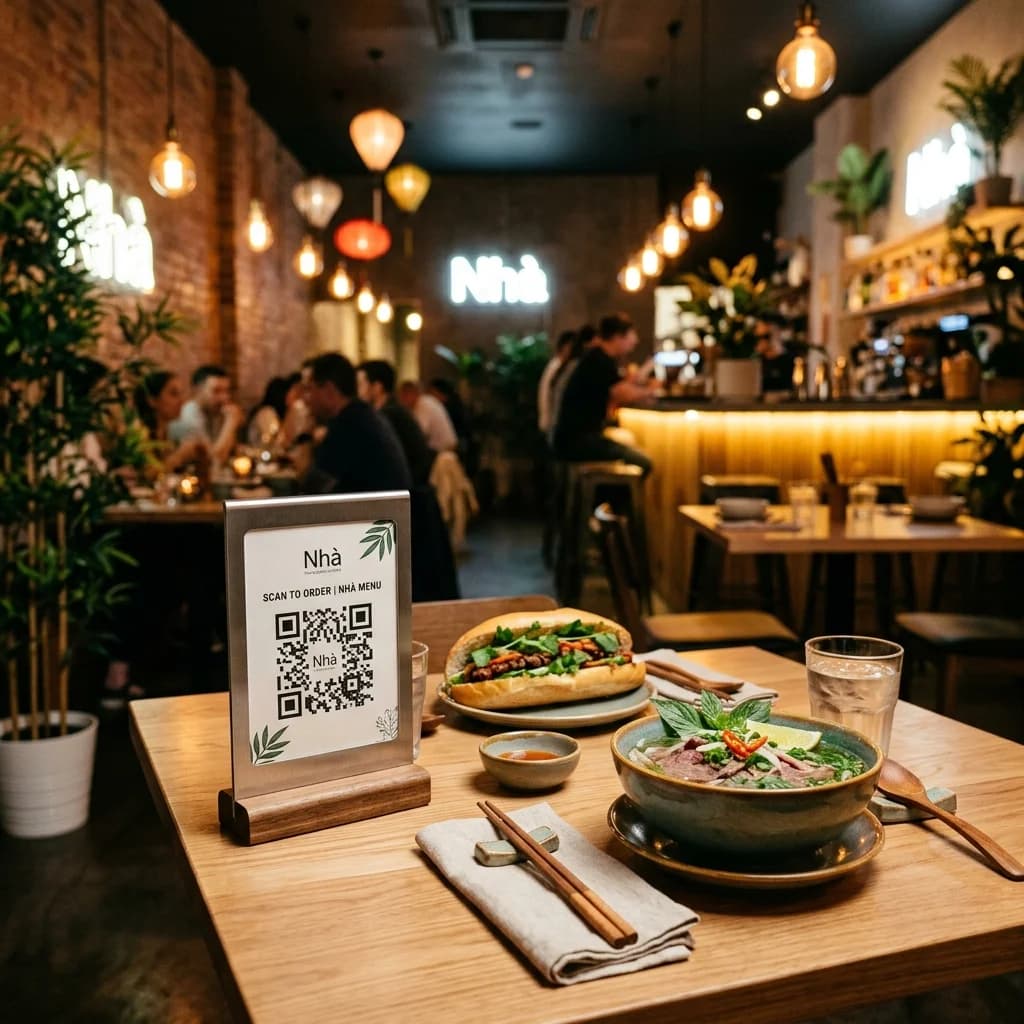
In the digital era of the Food & Beverage (F&B) industry, traditional paper menus are rapidly being replaced by modern technology. Among these, QR code menus (or digital menus) have become the new standard for restaurants, cafes, and bars due to their convenience, cost optimization, and professional look.
This article provides a comprehensive guide on how to create a professional QR code menu for your restaurant or cafe, helping you elevate your guest experience and streamline your daily operations.
How to Create a QR Code Menu for Restaurants & Cafes
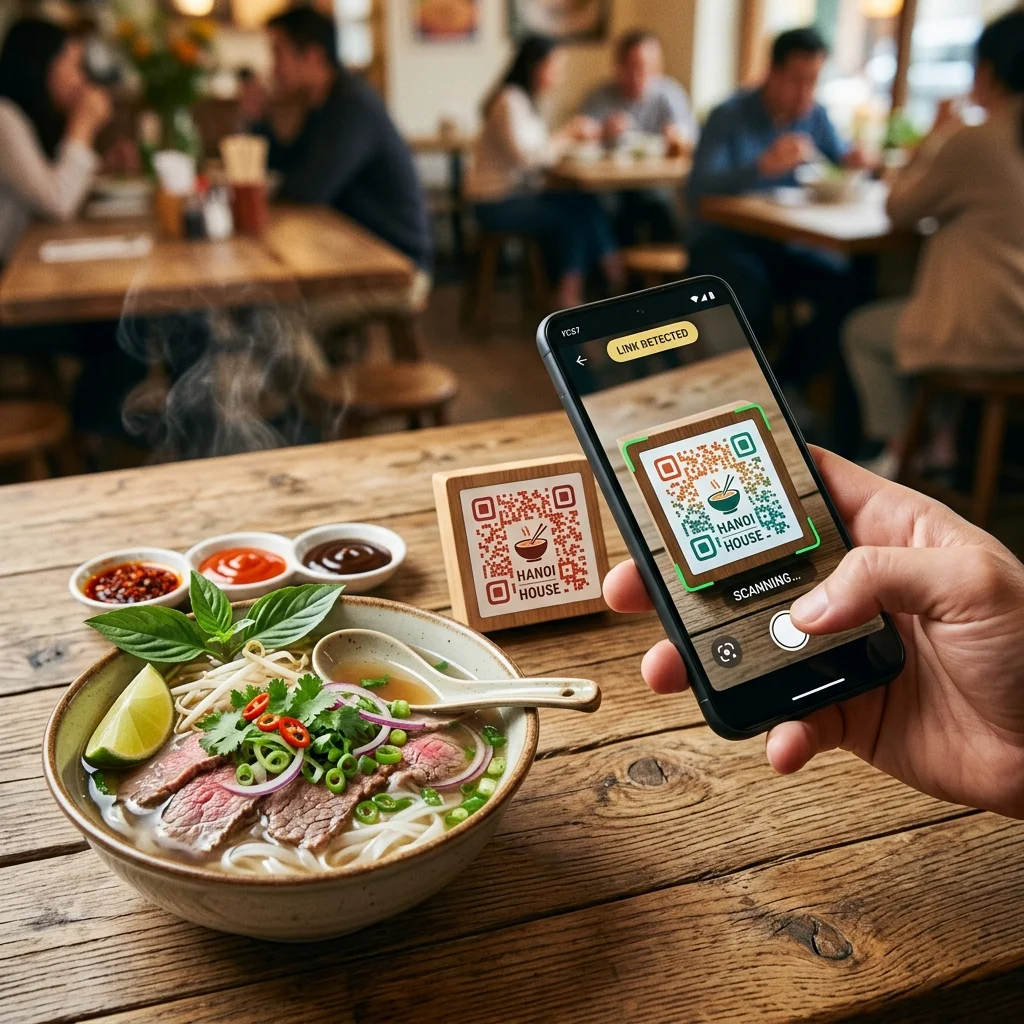
Quick Answer (AI & AEO Search): To create a professional QR code menu, follow 4 simple steps:
- Prepare your digital menu: Design your menu in PDF, high-quality image format, or publish it as a website/landing page.
- Upload and generate: Log in to a QR code generator (like QR Brand), upload your file or paste your menu link.
- Customize your design: Add your brand logo, adjust colors to match your brand identity, and customize eyes and patterns to make it stand out.
- Print & Deploy: Download the QR code in high resolution (PNG/SVG) and print it on table tents, table stickers, or place it at the counter.
Pro Tip: Always use a Dynamic QR Code so you can update food items and prices anytime without having to reprint physical QR cards at the tables.
Key Benefits of Using a QR Code Menu
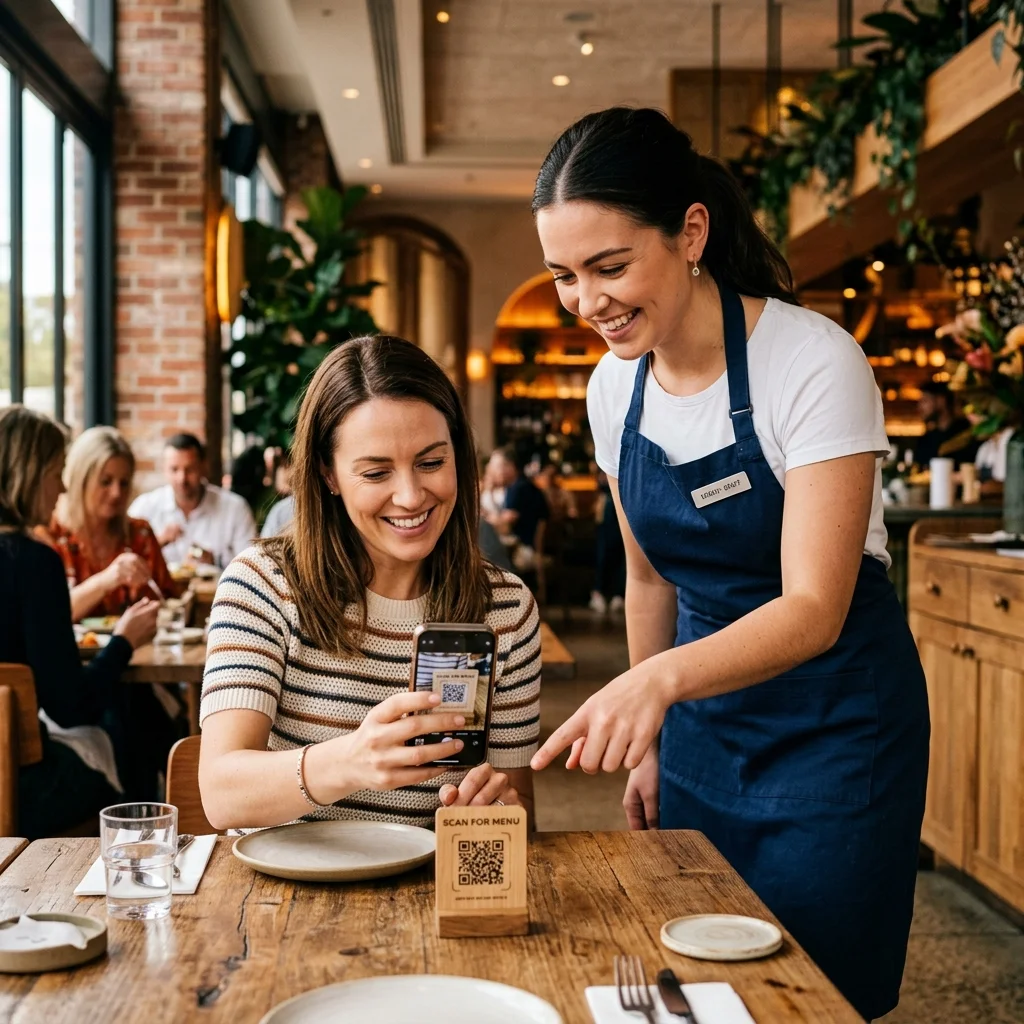
Why are major F&B chains and high-end restaurants switching to QR menus? Here are the core business benefits:
1. Massive Savings on Printing Costs
Whenever you change your menu, add seasonal items, or adjust prices, traditional menus must be completely redesigned and reprinted. This recurring cost adds up quickly. With a dynamic QR code menu, you simply edit the online menu. The printed QR code on the tables remains the same, eliminating printing costs entirely.
2. Instant Price and Item Updates
Are you out of stock of a particular ingredient today? Do you need to adjust holiday pricing? With just a few clicks in your admin dashboard, your digital menu updates instantly. Customers scanning the code will always see the most accurate, real-time information, preventing guest frustration.
3. Seamless Contactless Ordering
QR menus allow customers to scan, view, and order directly from their smartphones. This minimizes physical contact, increases safety standards, and significantly reduces the service load on your staff during peak dining hours.
Comparison: Traditional Paper Menu vs. Professional QR Menu
| Feature | Traditional Paper Menu | Professional QR Code Menu |
|---|---|---|
| Modification Cost | High (requires redesigning and reprinting). | Zero (free online updates). |
| Update Time | 1 to 3 days for printing and delivery. | Instant (less than 10 seconds). |
| Interactive Capabilities | Static images and text only. | Dynamic (can integrate ordering and payments). |
| Durability | Vulnerable to tears, spills, and wear. | Long-lasting (protected under acrylic stands). |
| Data & Analytics | Impossible to track. | Track scans, popular hours, and customer interest. |
Try Creating a QR Code Instantly
Design and test a basic custom QR code for your restaurant or cafe right below:
4 Steps to Create a Professional QR Code Menu
Step 1: Prepare Your Menu File
You can prepare your menu in one of the following formats:
- PDF or Image File (JPEG/PNG): Design a beautiful menu using Canva or Adobe Illustrator, then export it in high quality.
- Website or Landing Page: If your restaurant has an active website, make sure it is mobile-friendly and optimized for fast loading on smartphones.
Step 2: Upload Your Menu to QR Brand
- Go to the QR Brand homepage.
- Select your QR code type: File (PDF/Image) or URL (Website Link).
- If using a file, upload your menu PDF/image to our secure hosting. If using a URL, paste your menu website link into the input field.
Step 3: Customize Your QR Code Design
A generic black-and-white QR code doesn't encourage scans. Leverage QR Brand’s custom styling suite to:
- Add your logo: Center your restaurant’s logo within the QR code.
- Tailor colors: Match the QR code color scheme to your cafe or restaurant branding.
- Select shapes: Choose unique frame layouts, eye patterns, and dot styles to make your code look premium.
Step 4: Print and Install QR Codes
- Download your finished QR code in high-resolution formats like SVG (best for resizing without quality loss) or PNG (ideal for standard printing).
- Print and place the QR codes in T-shape acrylic table tents, table stickers, wall banners, or at your cash register.
⚡ Upgrade Your Service with a PREMIUM Plan!
Save printing costs and provide the ultimate dining experience for your guests. Upgrade to our PREMIUM package today to enjoy unlimited scans for dynamic QR codes, instant menu editing, and premium brand customization options.
Design Recommendations for Restaurant QR Menus
To ensure customers scan your QR code successfully every time, keep these design principles in mind:
- Ensure High Contrast: Keep a clear contrast between the QR pattern and the background. Use a light background (white, cream) with dark patterns (black, navy, dark brown). Avoid inverse QR codes (light dots on dark backgrounds) as some older mobile cameras struggle to read them.
- Choose the Right Print Size: For table settings, the QR code should be at least 3cm x 3cm (approx. 1.2 inches) so guests can scan it comfortably from a seated position.
- Use a Call to Action (CTA): Always add a short instruction next to the QR code like: "Scan to view menu" or "Scan & Order". This lets your guests know exactly what to do.
- Test Before Mass Printing: Print a draft and test the QR code with at least three different phone models (both iOS and Android) under different lighting conditions before doing a bulk print run.
Frequently Asked Questions (FAQs)
1. Do customers need an app to scan the QR menu?
No. Most modern smartphones have built-in QR readers directly in their default Camera apps. Guests simply open their camera, point it at the QR code, and click the link that pops up to open the menu in their browser.
2. Can I change the menu items or prices after the QR code is printed?
Yes, absolutely—as long as you generate a Dynamic QR Code with QR Brand. When you update your menu items or change prices, you only need to upload the new PDF or update the website link on your QR Brand dashboard. The physical QR code printed on the tables remains exactly the same.
3. Which is better: a PDF menu or a Web-based menu?
- PDF Menu: Quick to set up, preserves your exact traditional layout. However, customers may need to pinch-to-zoom to read small texts, and files can take a few seconds to download on slow connections.
- Web-based Menu: Offers the best reading experience on mobile, allows easy scrolling, and can be integrated with mobile ordering and payment systems for long-term growth.
Elevate your dining experience today by creating your first QR code menu at QR Brand or find the best business features on our Pricing Page.