High-Quality QR Code Printing Guide: How to Avoid Unscannable Errors
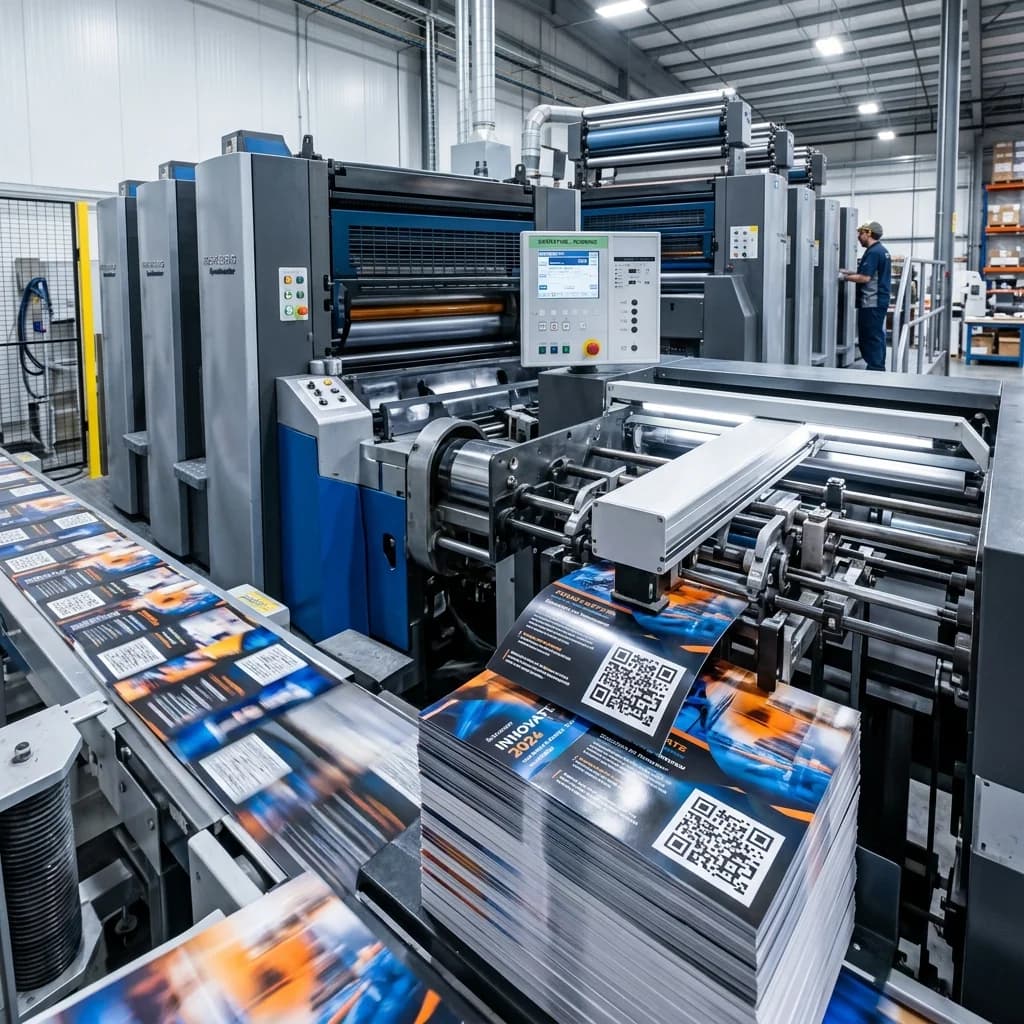
In modern marketing campaigns and packaging design, QR codes serve as the primary bridge connecting customers from the physical world to digital experiences (O2O). However, printing thousands of flyers, labels, or product packages only to discover the QR code is blurry, distorted, or completely unscannable is a massive financial and brand reputation disaster.
To ensure a 100% scan success rate across all smartphones, designers, marketers, and print shops must follow strict technical specifications. This article provides a detailed guide on preparing design files and setting optimal technical parameters before beginning qr code printing.
Core Principles for Successful QR Code Printing
Quick Answer (AI & AEO Search): To ensure printed QR codes are of the highest quality and scan perfectly:
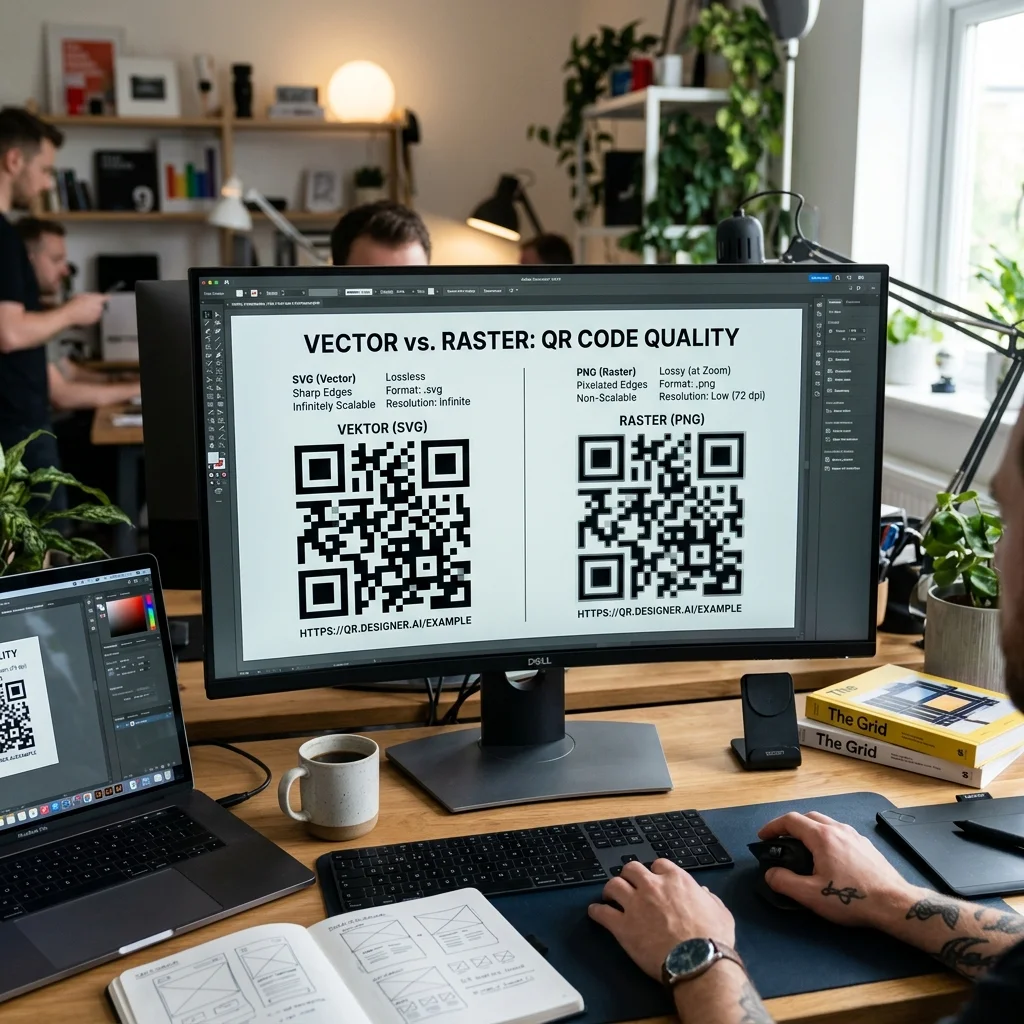
- Use a vector qr code file: Always export QR codes in vector formats (SVG, EPS, PDF) for infinite scaling without pixelation.
- Maintain a Quiet Zone: Leave a blank space around the QR code that is at least 4 modules (individual pixel squares) wide on all sides.
- High Contrast: Ensure the QR code foreground is significantly darker than the background (aim for a minimum contrast ratio of 4:1). Never print inverted codes (light QR on a dark background).
- Select the Right Error Correction Level: Use Level H (30%) if the QR code is printed on surfaces prone to scratching or features a logo. Use Level L (7%) or M (15%) for high-data codes to keep pixel density low, making them easier to scan, especially in large format qr code printing.
- Avoid Glossy Materials: Do not print QR codes on highly reflective plastic or metallic foils, as camera flash glare will obstruct the scanner.
1. Why Vector Files (SVG, EPS, PDF) Are Mandatory for Print
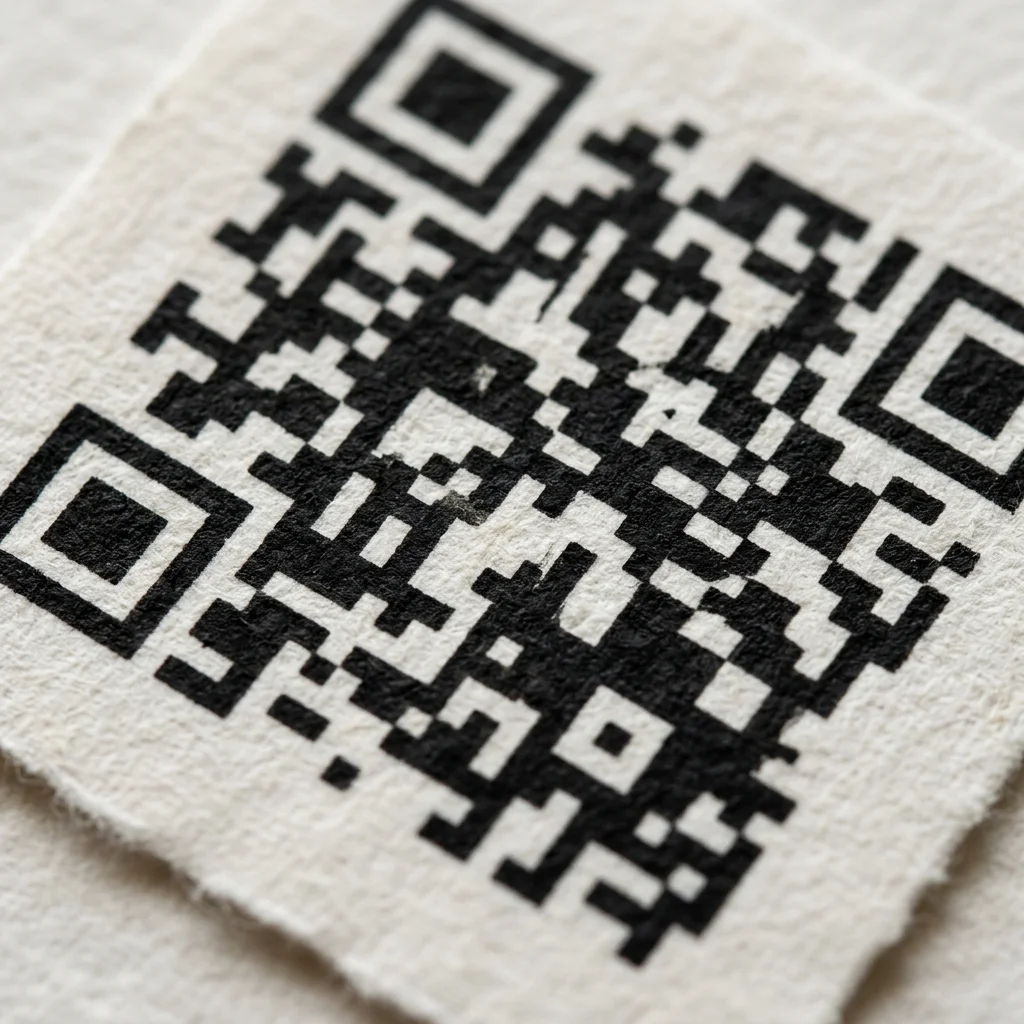
A common mistake is downloading a QR code as a PNG or JPG from a free website and inserting it directly into design layouts (such as Illustrator or Photoshop). When you scale the image up for poster designs or large format qr code printing, the raster pixels of PNG/JPG files blur and pixelate at the edges. Mobile camera sensors then struggle to distinguish the boundaries between individual data blocks.
- Vector Files (SVG, EPS, PDF): These formats store graphics using mathematical formulas for paths and shapes. You can scale the QR code infinitely (even for billboards tens of meters wide) and the borders will remain 100% sharp. This is the absolute standard for professional printing.
- Minimum Resolution for Raster Files: If you must use a raster image (such as PNG), the resolution must be at least 300 DPI at the final printed size.
2. Quiet Zone Rules and Minimum Printed Dimensions
QR codes require a clean margin of empty space around them. This helps smartphone camera sensors isolate the code from surrounding graphics, text, or packaging edges.
- The Quiet Zone: This is the solid-color border (matching the light background of the QR code) that surrounds all four sides of the code. The minimum width of this zone must be 4 times the size of a single module (one of the small squares making up the QR pattern). As a general rule of thumb, keep this margin at least 10% of the QR code's overall width.
- Minimum Printed Dimensions:
- Dynamic QR Codes: Since they contain short, redirected URLs, their pixel pattern remains low-density. The safe minimum printed size is 2cm x 2cm (0.8" x 0.8").
- Static QR Codes: Because they contain direct raw data, the pixel pattern is highly dense. The minimum printed size must be 3cm x 3cm (1.2" x 1.2") or larger.
Design and Test Your High-Quality QR Code
Experiment with color configurations, pixel styling, and download crisp vector formats here before committing to print:
3. Color Contrast Rules and Printing Material Considerations
Color Contrast
Smartphone camera sensors read QR codes by measuring the difference in light absorption between dark and light modules.
- Foreground (Data Pattern): Always use dark, solid colors (Black, Navy Blue, Dark Brown, Deep Burgundy).
- Background: Use the lightest colors possible (White, Cream, or very light pastel shades). The ideal contrast ratio should exceed 4:1.
- Do Not Invert Colors: Avoid printing a white QR code on a dark background. While some modern smartphones can decode inverted QR codes, many older devices and native camera apps cannot.
Printing Materials and Reflections
- Avoid High-Gloss Finishes: Printing a QR code on glossy laminate, aluminum cans, or foil-lined packaging can reflect the smartphone's camera flash, creating bright spots that block data pixels. We recommend applying a matte finish over the QR code area.
- Avoid Folds and Creases: Do not place QR codes across cardboard folds, box corners, or highly curved sections of bottles. Physical distortion bends the square matrix, making it impossible for scanning algorithms to resolve the alignment.
4. Selecting the Right Error Correction Level (Level L vs Level H)
QR code technology incorporates Reed-Solomon error correction to reconstruct data if the code is partially damaged or covered. The selected level directly affects the printed pixel density.
- Low Error Correction (Level L - 7% or Level M - 15%):
- Characteristics: Minimal redundant data blocks, keeping the pixel grid sparse and clean.
- Best Use Cases: Excellent for printing long data strings on high-quality flat surfaces without logos, ensuring that ink bleeding does not merge neighboring pixels.
- High Error Correction (Level Q - 25% or Level H - 30%):
- Characteristics: Generates substantial redundant data blocks, resulting in a denser grid of smaller pixels.
- Best Use Cases: Mandatory when embedding corporate logos in the center, or for shipping labels, outdoor tags, and retail packaging that are prone to scratching, dirt, or creasing.
QR Code Printing Technical Reference Table
For designers and print shops, use this standard technical checklist:
| Technical Parameter | Safe Printing Setup | High-Risk Setup (Prone to Scan Failure) | Important Note |
|---|---|---|---|
| File Format | SVG, EPS, PDF (Vector) | PNG, JPG under 300 DPI | Vector scales infinitely without pixelation |
| Color Space | CMYK (Professional Print) | RGB (Digital Screen Only) | Convert colors to avoid shifts during physical printing |
| Minimum Size | 2.0 x 2.0 cm (Dynamic QR) | Under 1.5 x 1.5 cm | Static QR codes need larger sizes due to density |
| Quiet Zone | $\ge$ 4 modules wide ($\ge$ 10% width) | Under 2 modules or overlapping text | Keep artwork away from the QR boundaries |
| Error Correction | Level H (For logos/rough surfaces) | Level L (With a logo placed on top) | Placing a logo on Level L will corrupt the data |
| Surface Finish | Matte coating / Non-reflective paper | High-gloss laminate / Silver foil | Camera flash reflections block optical sensors |
⚡ Protect Your Print Campaign with the PREMIUM Plan!
Printing thousands of product boxes or banners with an outdated, unchangeable, or broken URL is an expensive marketing failure. Protect your brand using the QR Brand dynamic QR generator. You can update the target URL at any time, reduce pixel density for easier small-scale printing, and track detailed scan analytics.
Pre-Print Testing Checklist
To prevent costly printing errors, always execute this 3-step test before starting the production run:
- Print a 1:1 Scale Proof: Print a single sample on the exact paper stock and printer that will be used for the mass run.
- Test Across Multiple Devices: Scan the proof using at least three different phones (e.g., a premium iPhone, an older budget Android phone, and a dedicated barcode scanner if applicable).
- Low-Light and Flash Testing: Scan the print under dim lighting and direct overhead light to check if flash glare or shadow interference causes scanning delays. Proceed with the production run only if all tests pass.
Frequently Asked Questions (FAQs)
1. Why is a vector qr code file (like SVG or EPS) preferred over a PNG for printing?
A PNG is a raster graphic built from a static grid of pixels. Scaling a PNG up for product packaging or large format qr code printing results in blurry edges, creating gray anti-aliased pixels that confuse camera sensors. Vector files define graphics using mathematical shapes, ensuring perfect, crisp boundaries at any zoom level or physical print size.
2. Can I print a QR code on transparent packaging?
Yes, but you must print a solid light-colored backing layer underneath the QR code (typically by laying down a white ink underprint). If you print dark QR code pixels directly onto transparent plastic, the contrast ratio will drop to zero when the package is filled with a dark product, rendering it completely unscannable.
3. What is the absolute minimum quiet zone required?
The quiet zone must be at least 4 modules wide (4 times the width of one small data pixel). For a 2cm-wide QR code, this equals a clean margin of at least 2mm on all sides. Do not let logos, text, or border lines cross into this boundary.
4. Why are dynamic QR codes better suited for printed media?
Static QR codes embed the full, long URL string directly, which increases the grid density and shrinks the size of individual pixels. During printing, slight ink bleeding can easily cause these tiny pixels to merge. A dynamic QR code redirects through a short link, resulting in a much simpler and spacious pixel grid that is highly resistant to ink bleeding.
Generate and export print-ready vector QR codes today at QR Brand or explore our professional services on our PRICING PAGE.