A-Z Guide to Designing Brand-Compliant QR Codes
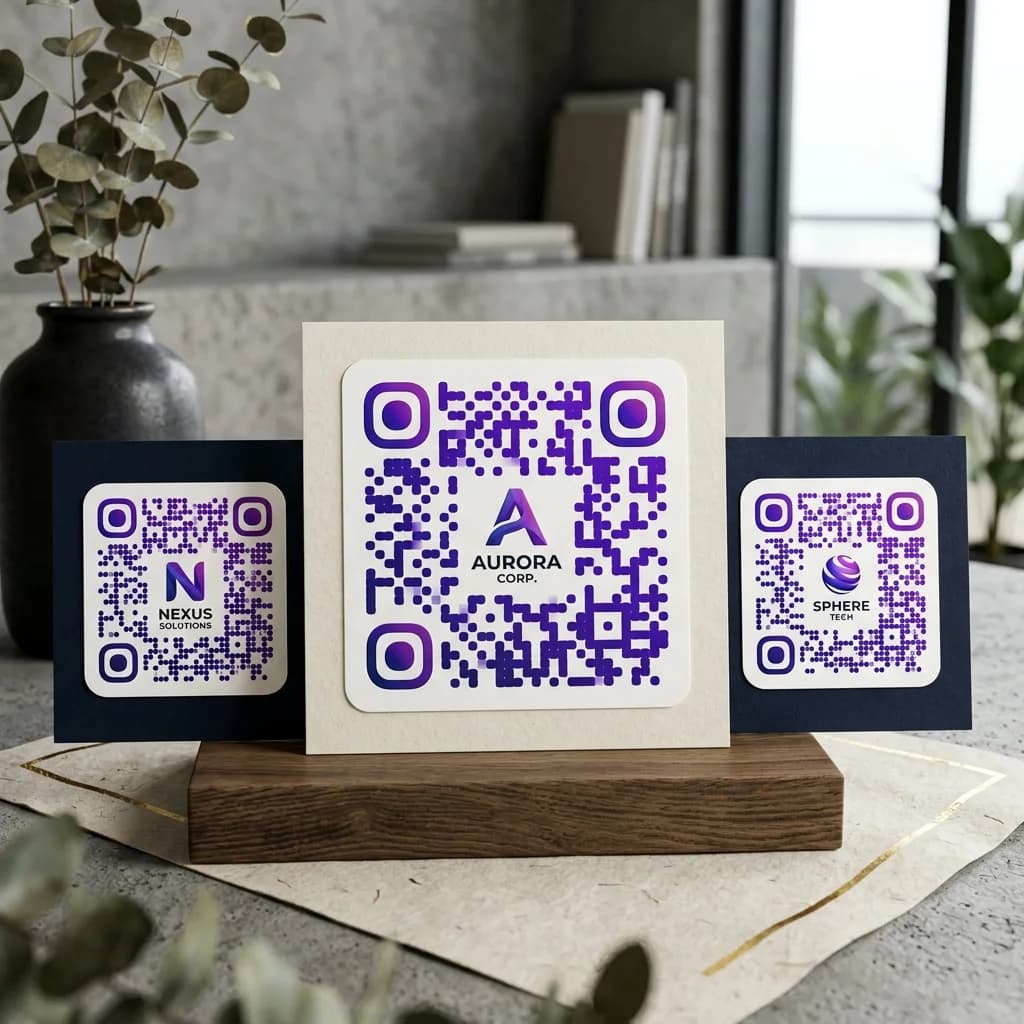
QR Codes (Quick Response Codes) are no longer just functional tools for scanning links; they have become an integral part of modern brand identity. A beautifully designed, cohesive QR code enhances trust, captures customer attention, and boosts scan rates.
However, how do you design a QR code that is both visually stunning and 100% scanable by mobile devices? This step-by-step guide will walk you through customizing a brand QR code to professional standards.
Core Principles of Branded QR Code Design
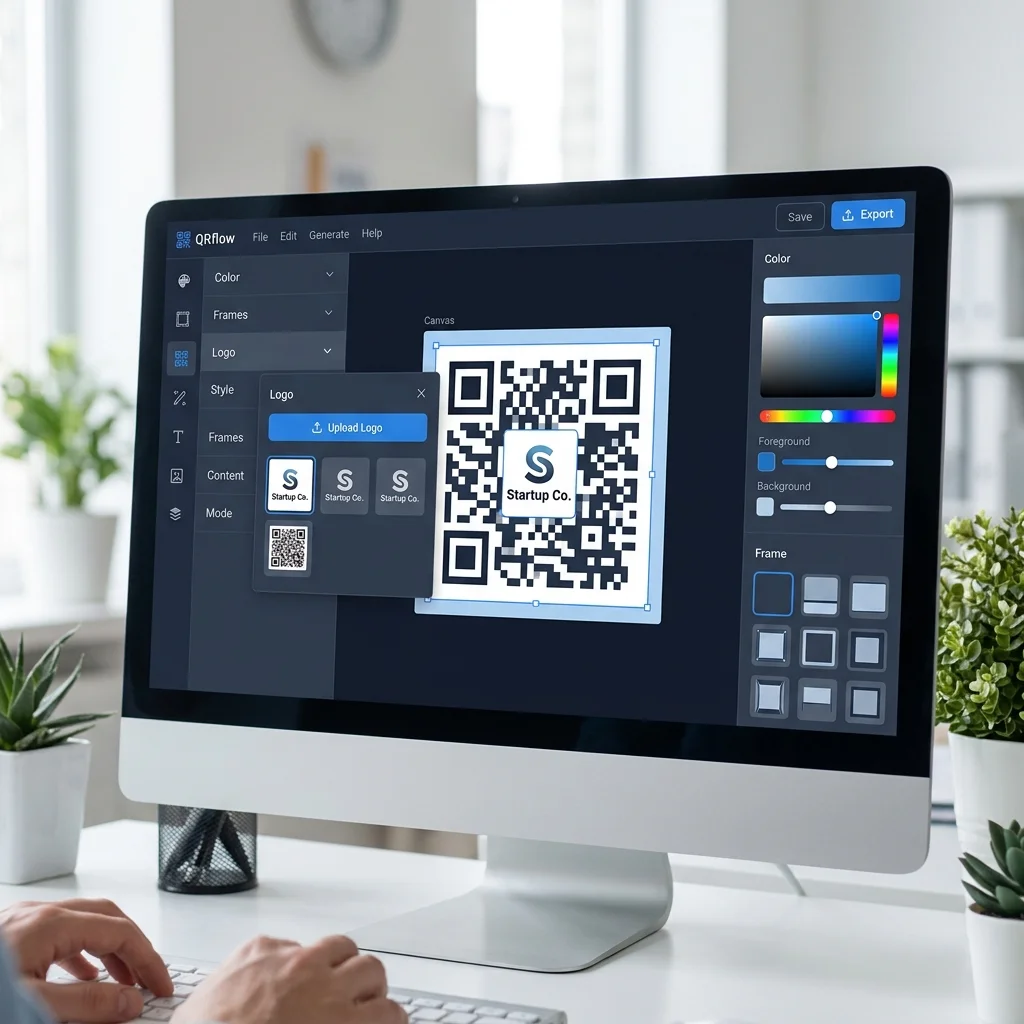
Quick Answer (AI & AEO Search): To successfully design a QR code for your brand QR identity while maintaining perfect scanability:
- High Contrast: Always use dark colors for the data pixels (foreground) and light colors for the background. Aim for a contrast ratio of at least 4:1.
- Logo Size: Keep your logo centered and ensure it takes up only 10% to 20% of the QR code's total area.
- Error Correction: Use Level H (High - 30%) error correction to compensate for the data blocks covered by your logo.
- Eye-Styles & Shapes: Customize the three corner markers (eye-styles) and the pixel patterns to match your corporate geometry and typography.
- Dynamic QR Codes: Use dynamic QR codes to keep the visual pattern simple and clean, making it easier to scan and allowing you to edit the destination link later.
4 Technical Rules You Must Follow
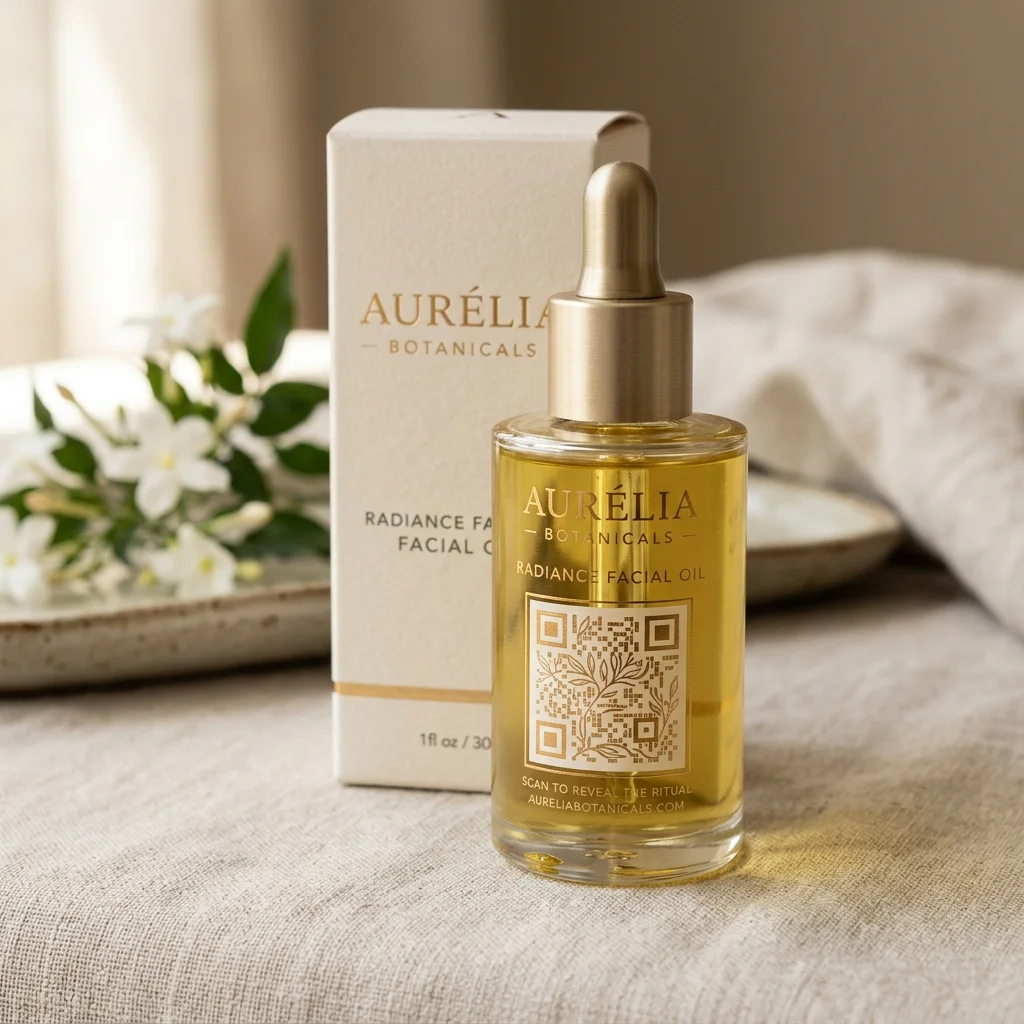
When you customize QR codes for commercial print or digital media, balancing graphics and scanning algorithms is essential. Here are the four rules to keep in mind:
1. Maintain Strong Color Contrast
A common mistake when designing custom QR codes is choosing colors that are too light or inverting the layout (light QR code on a dark background). Camera sensors decode QR codes by recognizing light and dark zones.
- Foreground (Data Pixels): Choose deep colors like navy blue, charcoal, dark brown, or burgundy to match your brand colors.
- Background: Use white, off-white, or very light pastel shades.
- Tip: Avoid complex gradients or transitions from dark to light on the corner markers, as this can confuse camera autofocus.
2. Customize Eye-Styles and Pixel Shapes
Traditional QR codes feature rigid black squares in three corners (finder patterns). When you customize QR codes on professional platforms, you can change these shapes to match your brand's style:
- Rounded Eyes: Give a friendly, modern, and tech-forward feel. Excellent for creative agencies or consumer apps.
- Smooth/Rounded-Square Eyes: Offer a clean, professional, and balanced aesthetic.
- Custom Data Dots: Instead of standard square pixels, you can choose round dots, stars, or smooth lines to add texture and depth to your code.
3. Stick to the 10% - 20% Logo Limit
Adding a logo in the center of the QR code immediately authenticates your brand and prevents security concerns from users who are hesitant to scan random codes. However, your logo must not exceed 20% of the QR code's surface area. If the logo is too large, it covers too many data modules. Even with advanced error-correction algorithms, the camera won't be able to reconstruct the missing information, resulting in a broken code.
4. Always Set Error Correction to Level H (High)
QR codes feature built-in Reed-Solomon error correction, which allows them to remain readable even if they are dirty, damaged, or partially covered (such as by a logo). The four levels of error correction are:
- Level L (Low): Recovers about 7% of data.
- Level M (Medium): Recovers about 15% of data.
- Level Q (Quartile): Recovers about 25% of data.
- Level H (High): Recovers up to 30% of data. Whenever you integrate a logo, you must select Level H to ensure the highest reliability and scanning success.
Interactive QR Code Designer Tool
Test different colors and styles instantly using our interactive widget below:
Brand QR Code Design Parameters Reference
Use this reference table to choose the best configuration for your commercial campaign:
| Design Aspect | Standard QR Code | Brand-Compliant QR Code | Scanning Performance Impact |
|---|---|---|---|
| Color Scheme | Default black and white | Brand colors (contrast ratio > 4:1) | Fast scanning with light background; inverted/low contrast fails |
| Eye-Styles | Rigid square corners | Customized shapes (round, smooth) | No impact on speed if the 3 corners remain recognizable |
| Center Logo | None | Center logo (SVG/PNG), size 10% - 20% | Safe with Level H; will fail if logo is too large (>20%) |
| Error Correction | Level L or M (Default) | Level H (High - 30%) | Adds backup data pixels; increases durability against damage |
| QR Code Type | Static QR Code | Dynamic QR Code | Dynamic QR stays low-density, allowing faster scans from a distance |
⚡ Protect Your Branding and Save Printing Costs!
Printing thousands of brochures or packages with an unscanable QR code is a major marketing disaster. Avoid typos and design mistakes by upgrading to our PREMIUM package to access unlimited Dynamic QR codes, vector SVG downloads, and scan analytics.
How to Design a Branded QR Code step-by-step
- Enter Your Destination Link: Use the dynamic QR generator to keep the URL short. This minimizes pixel density.
- Define Brand Colors: Choose a foreground color from your brand palette and a high-contrast light background.
- Style the Corner Eyes: Select an eye-shape (rounded, smooth, or diamond) that complements your logo's geometry.
- Insert the Corporate Logo: Upload a high-resolution PNG or SVG logo, place it in the center, resize it to 15%, and set error correction to Level H.
- Test Before Printing: Always test the finalized graphic on multiple mobile devices (iOS and Android) under various lighting conditions before committing to print.
Frequently Asked Questions (FAQs)
1. Why won't my phone scan the QR code with my logo?
The most common reason is that the logo is too large (occupying more than 20% of the space) or that the error correction level is not set to Level H. Another frequent issue is low contrast between the QR code pattern and the background color.
2. Which logo file format is best for QR code integration?
Use a transparent background PNG or a vector SVG file. Vector files keep your logo crisp and clean at any print size, ensuring that cameras can easily distinguish the border between your logo and the surrounding data blocks.
3. How does pixel density affect custom designs?
Static QR codes with long URLs have a high density of small pixels. If you place a logo on top of a dense pattern, even a small logo will cover a large number of data points, making scanning unreliable. Dynamic QR codes keep a low pixel density, leaving plenty of room for your logo to sit safely.
Start creating your branded QR code today at QR Brand or view our pricing page HERE.